> ## Documentation Index
> Fetch the complete documentation index at: https://help.ciclostrategy.com/llms.txt
> Use this file to discover all available pages before exploring further.
# Organisation & admin settings
> Manage your account, notifications, workspace branding, teams, users, connected apps, and API keys from the Settings page.
## Overview
The Settings page is where you configure your account and, if you're an administrator, your
organisation — its teams, members, integrations, and API access.
## Where to find Settings
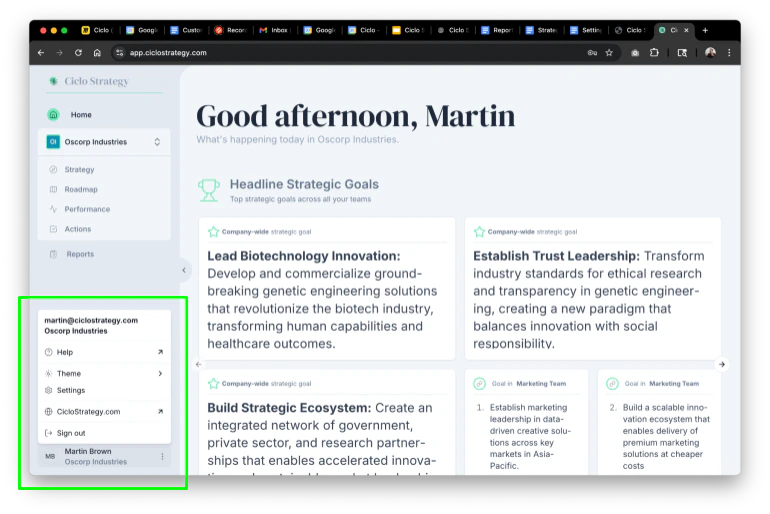
Click your **name and organisation name** in the bottom-left corner of the screen.
The dropdown includes **Help** (this documentation), a **theme selector** (light, dark,
or match system), a link to the **company website**, and **Settings**.
 ## The settings tabs
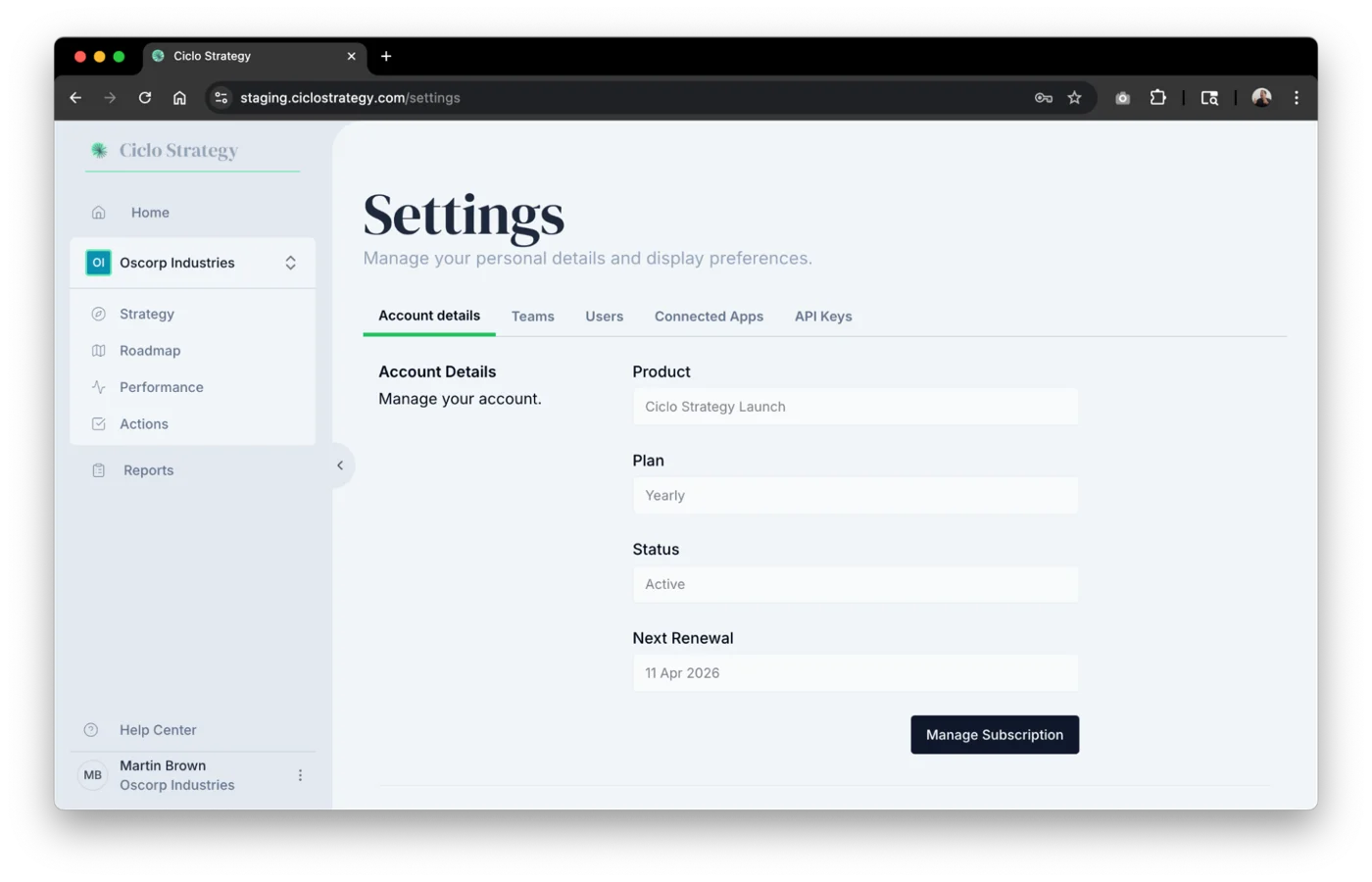 * **Plan info** — your subscription type (monthly/yearly), status, and next renewal date.
* **Manage subscription** — opens a secure Stripe billing portal to renew or cancel. On
a free trial? See [Upgrading from your trial](/getting-started/upgrading-your-trial).
* **Email & name** — update your personal details.
* **Password & MFA** — change your password and manage
[multi-factor authentication](/getting-started/account-and-login).
Your organisation name and role are typically locked and managed by your admin.
Control which email notifications you receive. A master **Enable email notifications**
switch turns everything on or off, with individual toggles for **action assignments**,
**initiative assignments**, **KPI assignments**, and **team additions**.
Brand your organisation's workspace by uploading a **small logo** (used in compact
spaces like the sidebar) and a **large logo**.
Define and manage internal teams. Click **Add Team** and set its **name**, **initials**,
and **colour** (used for visual markers across Ciclo). Assign per-team roles
(**Admin**, **Editor**, **Member**), mark one team as your **Executive Team** (the
origin point for strategy cascading), and **archive** teams you no longer need (archived
teams can be restored with one click). See
[Teams & permissions](/features/teams-and-permissions).
See everyone in your organisation — name, email, creation date, and last login — and
change roles if you're an admin. To add someone, enter their **name and email** and
click **Add User**; they receive an invitation and can then be assigned to teams. See
[Inviting your team](/getting-started/inviting-your-team).
Manage integrations with external platforms to pull in and push out data. See
[Integrations](/integrations/overview) for app-specific guides.
Generate **API keys** to export data from Ciclo into external systems — useful for
automating reporting, analytics, or BI integrations.
The options above are visible to **admin** users. If you're a regular member, you may not
see all of them depending on your role.
## Best practices
* **Enable MFA** for every account.
* **Delegate admins** — let department heads manage their own teams and reports.
* **Keep roles tight** — only grant Editor or Admin access where it's needed.
* **Set an Executive Team** to enable structured strategy cascading and better AI analysis.
* **Audit users regularly** — remove unused accounts and stale team memberships.
## Related
* **Plan info** — your subscription type (monthly/yearly), status, and next renewal date.
* **Manage subscription** — opens a secure Stripe billing portal to renew or cancel. On
a free trial? See [Upgrading from your trial](/getting-started/upgrading-your-trial).
* **Email & name** — update your personal details.
* **Password & MFA** — change your password and manage
[multi-factor authentication](/getting-started/account-and-login).
Your organisation name and role are typically locked and managed by your admin.
Control which email notifications you receive. A master **Enable email notifications**
switch turns everything on or off, with individual toggles for **action assignments**,
**initiative assignments**, **KPI assignments**, and **team additions**.
Brand your organisation's workspace by uploading a **small logo** (used in compact
spaces like the sidebar) and a **large logo**.
Define and manage internal teams. Click **Add Team** and set its **name**, **initials**,
and **colour** (used for visual markers across Ciclo). Assign per-team roles
(**Admin**, **Editor**, **Member**), mark one team as your **Executive Team** (the
origin point for strategy cascading), and **archive** teams you no longer need (archived
teams can be restored with one click). See
[Teams & permissions](/features/teams-and-permissions).
See everyone in your organisation — name, email, creation date, and last login — and
change roles if you're an admin. To add someone, enter their **name and email** and
click **Add User**; they receive an invitation and can then be assigned to teams. See
[Inviting your team](/getting-started/inviting-your-team).
Manage integrations with external platforms to pull in and push out data. See
[Integrations](/integrations/overview) for app-specific guides.
Generate **API keys** to export data from Ciclo into external systems — useful for
automating reporting, analytics, or BI integrations.
The options above are visible to **admin** users. If you're a regular member, you may not
see all of them depending on your role.
## Best practices
* **Enable MFA** for every account.
* **Delegate admins** — let department heads manage their own teams and reports.
* **Keep roles tight** — only grant Editor or Admin access where it's needed.
* **Set an Executive Team** to enable structured strategy cascading and better AI analysis.
* **Audit users regularly** — remove unused accounts and stale team memberships.
## Related