

Overview
Connecting Asana brings project delivery into your strategy. Ciclo reads task and project data so you can:Live KPIs
Turn project activity — completed, open, and overdue tasks, milestone progress — into
KPIs that refresh automatically.
Tasks as Actions
Link an Asana task to an Action so project work appears on your
board, with subtasks, tags, and due dates carried across.
Connecting and configuring integrations is limited to organisation administrators.
Connect Asana
Open Connected Apps
Go to Settings from the account menu, open the Connected Apps tab, find
Asana, and select Connect.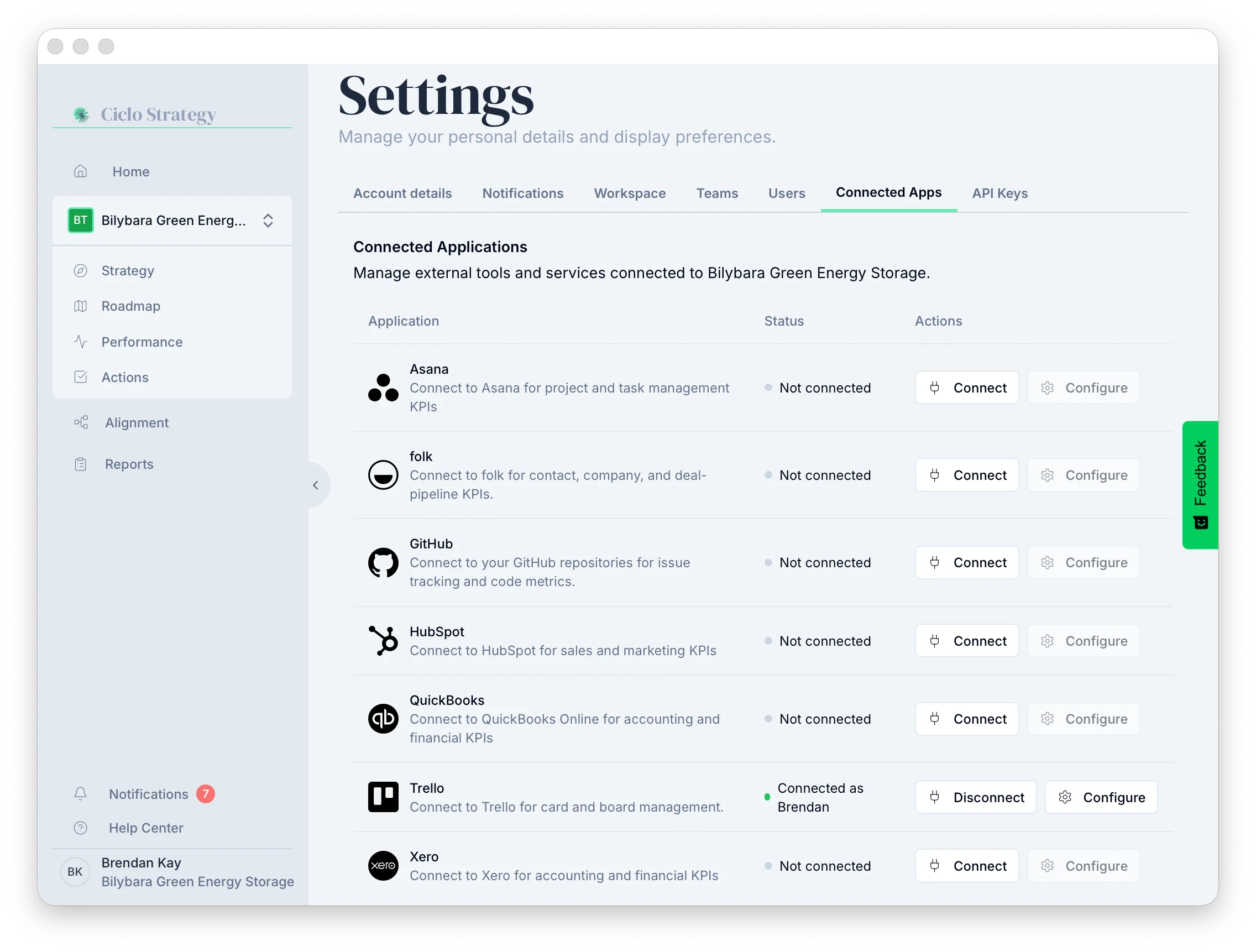
Sign in to Asana
Ciclo sends you to Asana to sign in. If you’re already signed in, access is granted
immediately — there’s no separate approval screen.
Track Asana KPIs
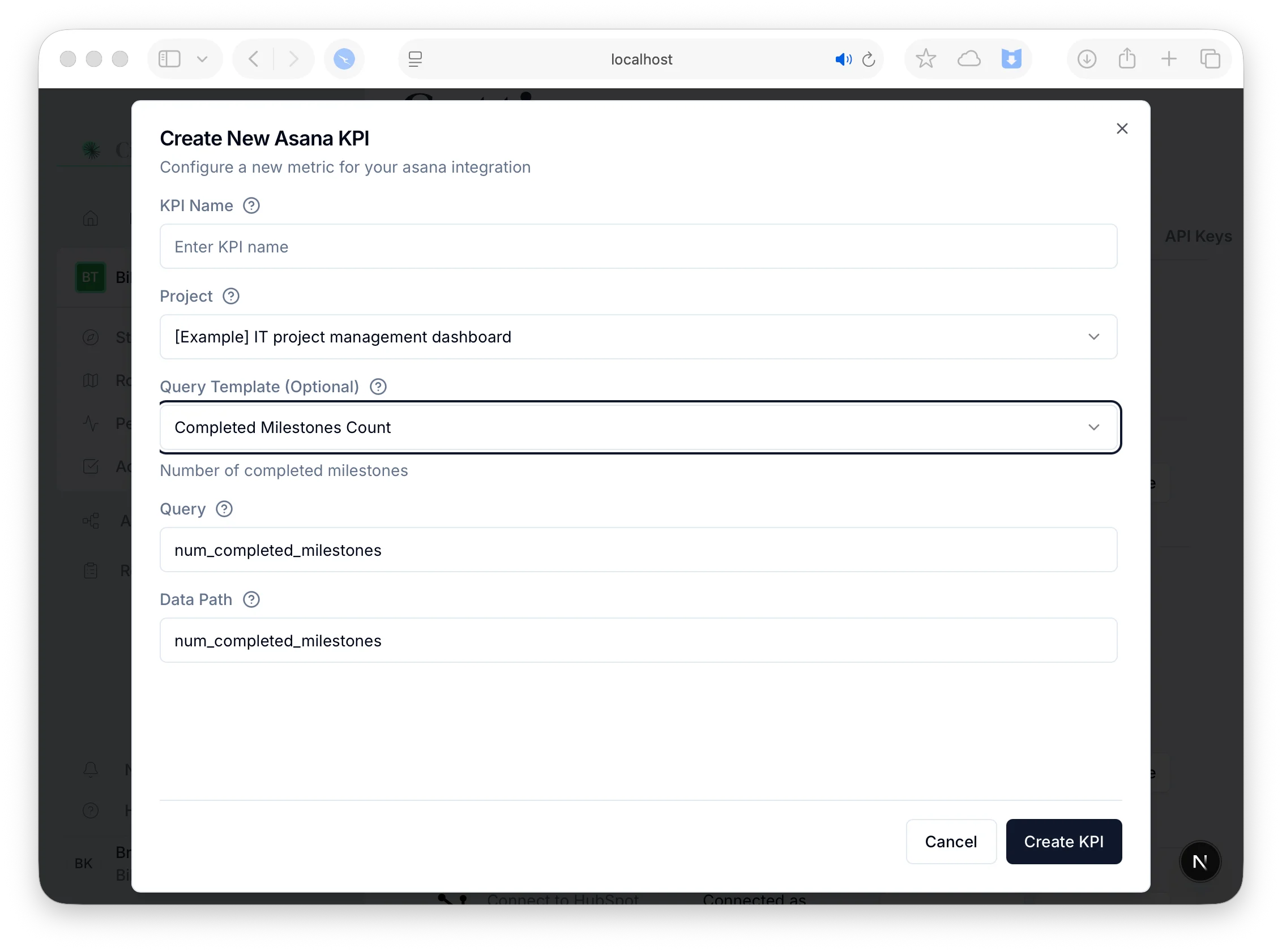
Pick a template
Choose a Query Template as a starting point — see the catalogue below.
Create the KPI
Select Create KPI. It appears on your Performance page
and refreshes automatically.
Available Asana KPIs
Task progress
Task progress
- Completed Tasks Count — tasks completed in the last 7 days.
- Open Tasks Count — currently open tasks.
- Incomplete Tasks Count — tasks not yet complete.
- Total Tasks Count — all tasks in the project.
- Completed Tasks Percentage — proportion of tasks completed.
- Overdue Tasks Count — tasks past their due date.
Milestones
Milestones
- Milestones Count — milestones in the project.
- Completed Milestones Count — milestones reached.
Customising a KPI (optional)
You don’t need any of this to get great results — the built-in templates are designed to be accurate on their own. Pick a template and a project, and you’re done. Expand the sections below only if you want to fine-tune or go further.Tweak a template to fit
Tweak a template to fit
If a template is close but not quite right, you can adjust it instead of starting from
scratch. Every KPI has an editable Query field — for example, change the
“Completed Tasks” window from the last 7 days to the last 14 days by editing
{date-7d}
to {date-14d}. The templates simply fill this field in for you; editing it is optional.Write your own query
Write your own query
Power users can adjust the query using Asana’s task query parameters. For everything that’s
possible, see:
Asana API reference
The query parameters Asana accepts when listing tasks.
Link Asana tasks to Actions
Open an action and go to Connect
Create or open an Action, then choose Connect.
Choose the project and task
Select Asana, pick the project, then choose the task to connect. Ciclo fills
in the title, notes, subtasks (as tasks), tags, and due date.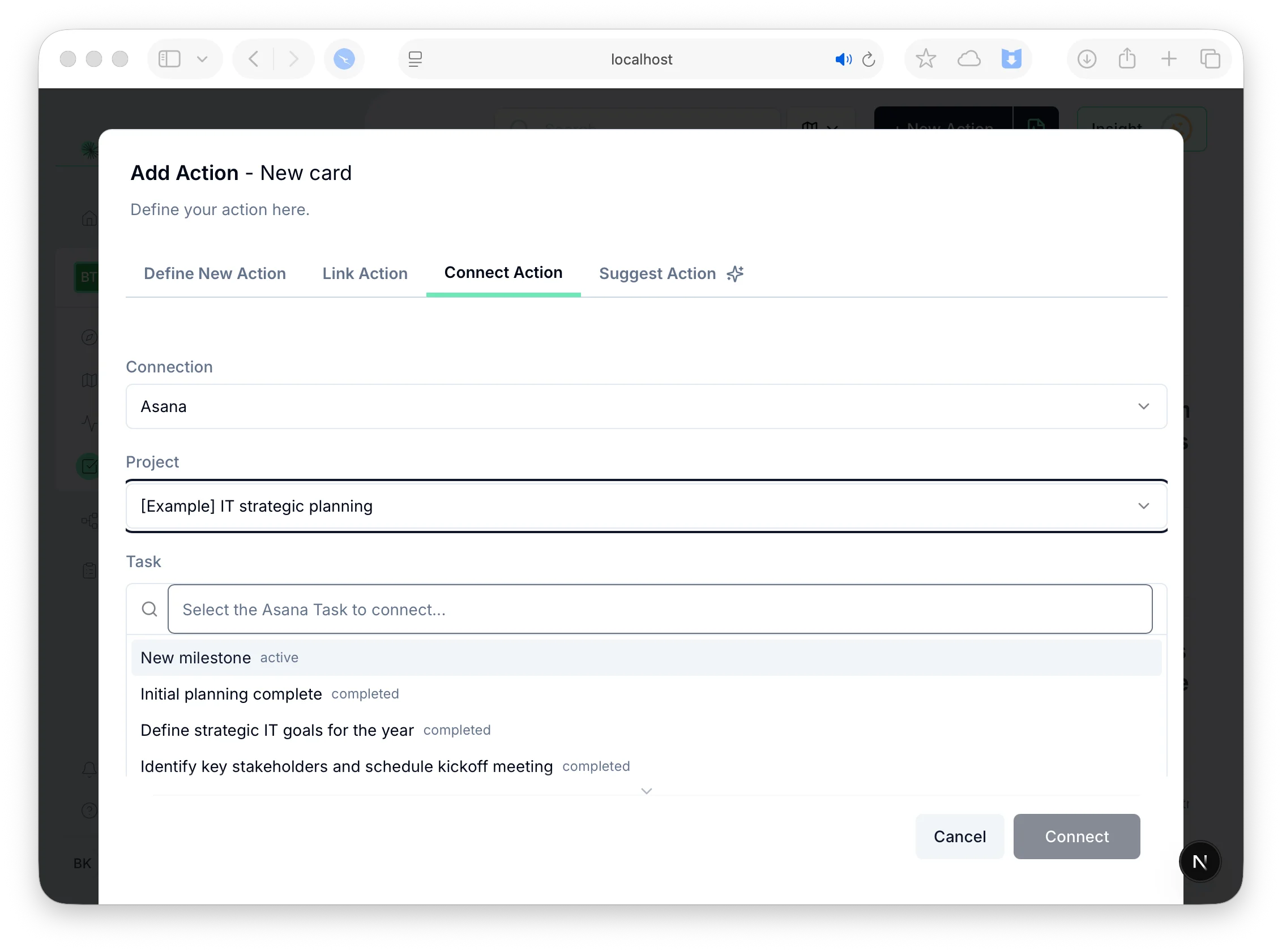
Disconnecting Asana
Select Disconnect on the Asana row. Ciclo shows which KPIs and Actions rely on Asana before you confirm.Disconnecting preserves history — KPIs keep their recorded values and linked Actions
keep their data. They stop syncing until you reconnect, then resume automatically.