

Overview
Connecting HubSpot brings your CRM into your strategy. Ciclo reads contact, company, deal, and ticket data so you can:Live KPIs
Turn CRM data — contacts, companies, pipeline value, deals won, support tickets — into
KPIs that refresh automatically.
Deals as Actions
Link a HubSpot deal to an Action so the work to close it appears on
your board, with stage, owner, line items, and close date carried across.
Connecting and configuring integrations is limited to organisation administrators.
Connect HubSpot
Open Connected Apps
Go to Settings from the account menu, open the Connected Apps tab, find
HubSpot, and select Connect.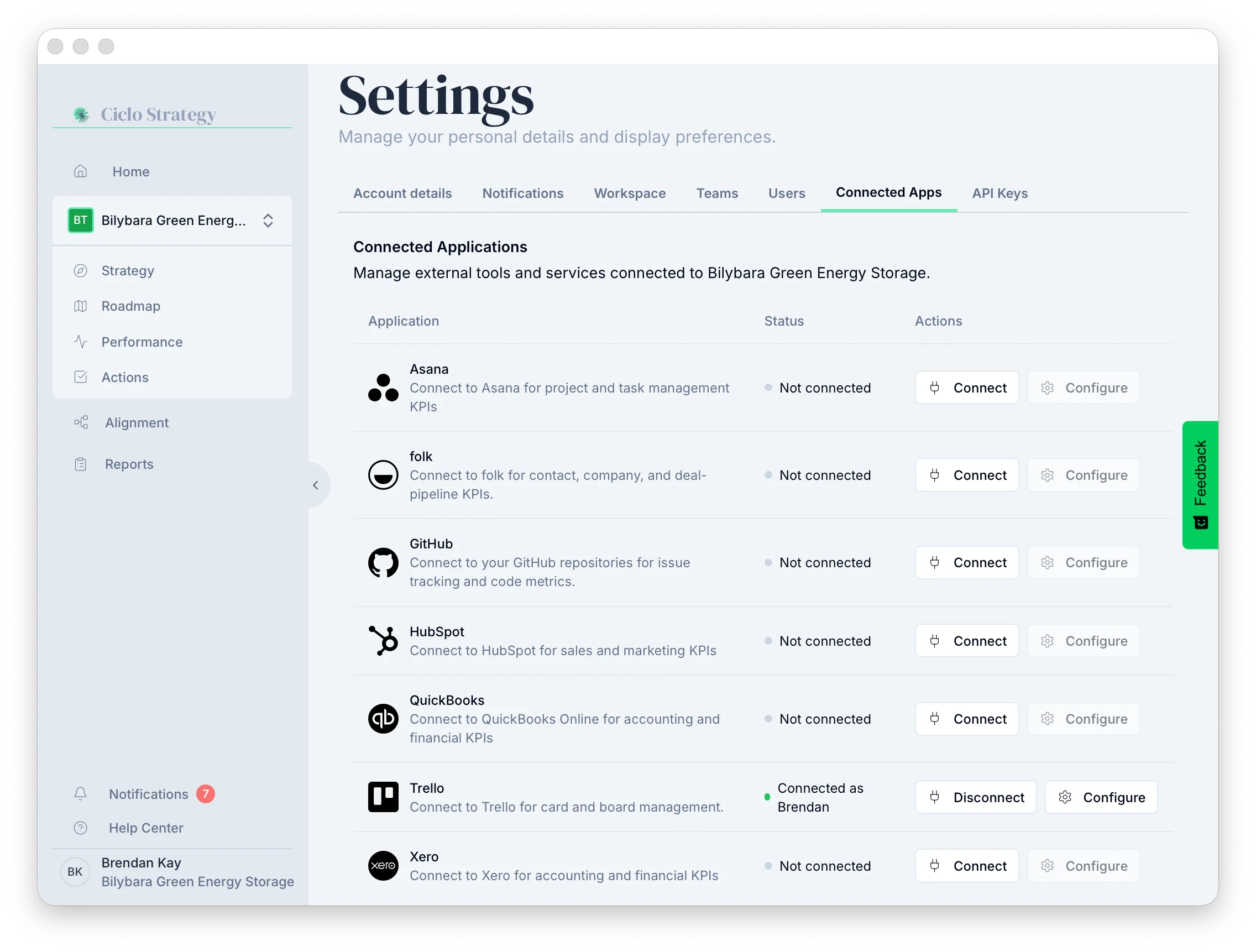
Authorise on HubSpot
Ciclo redirects you to HubSpot. Choose the account (portal) to connect and approve the
requested access to contacts, companies, deals, and tickets.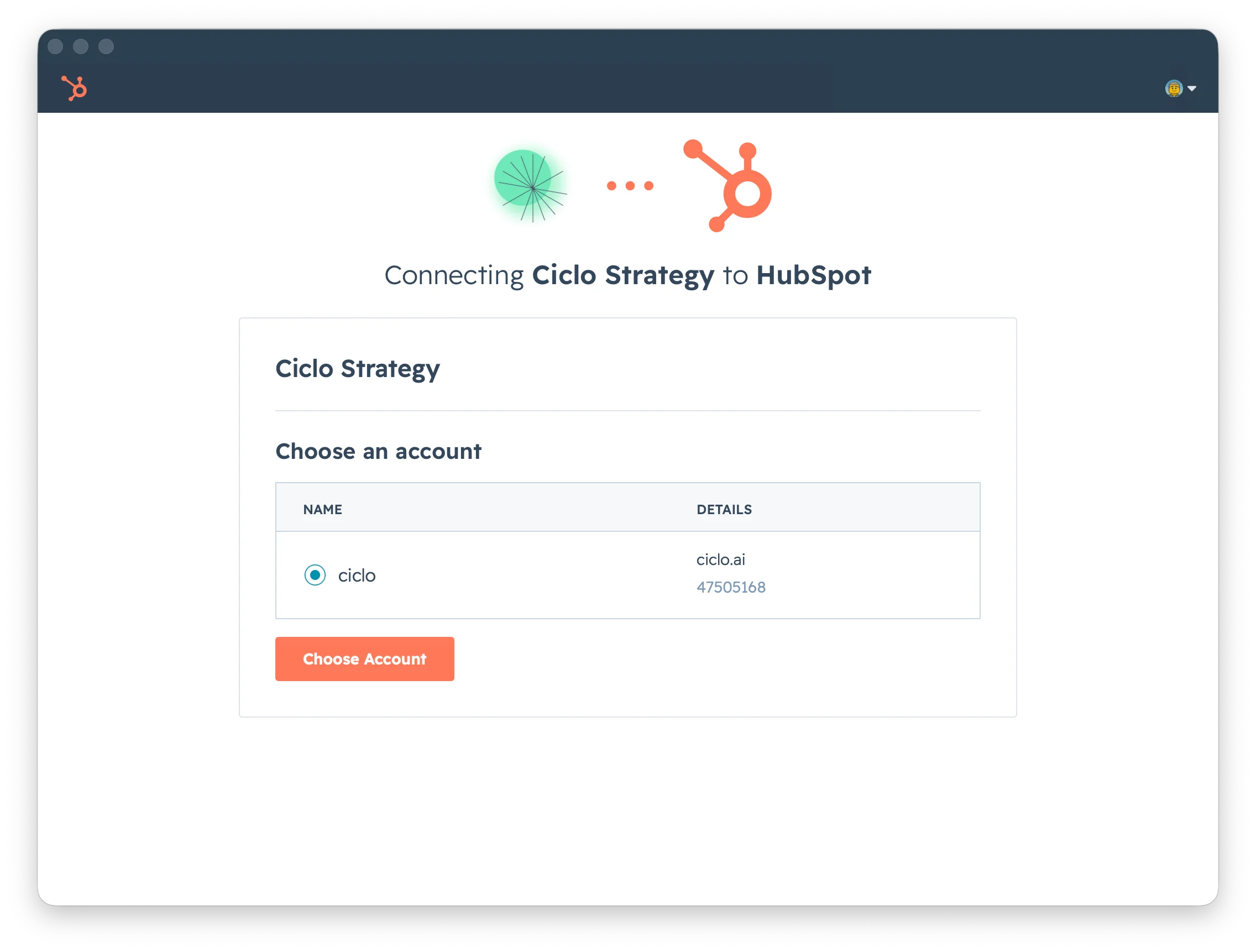
Track HubSpot KPIs
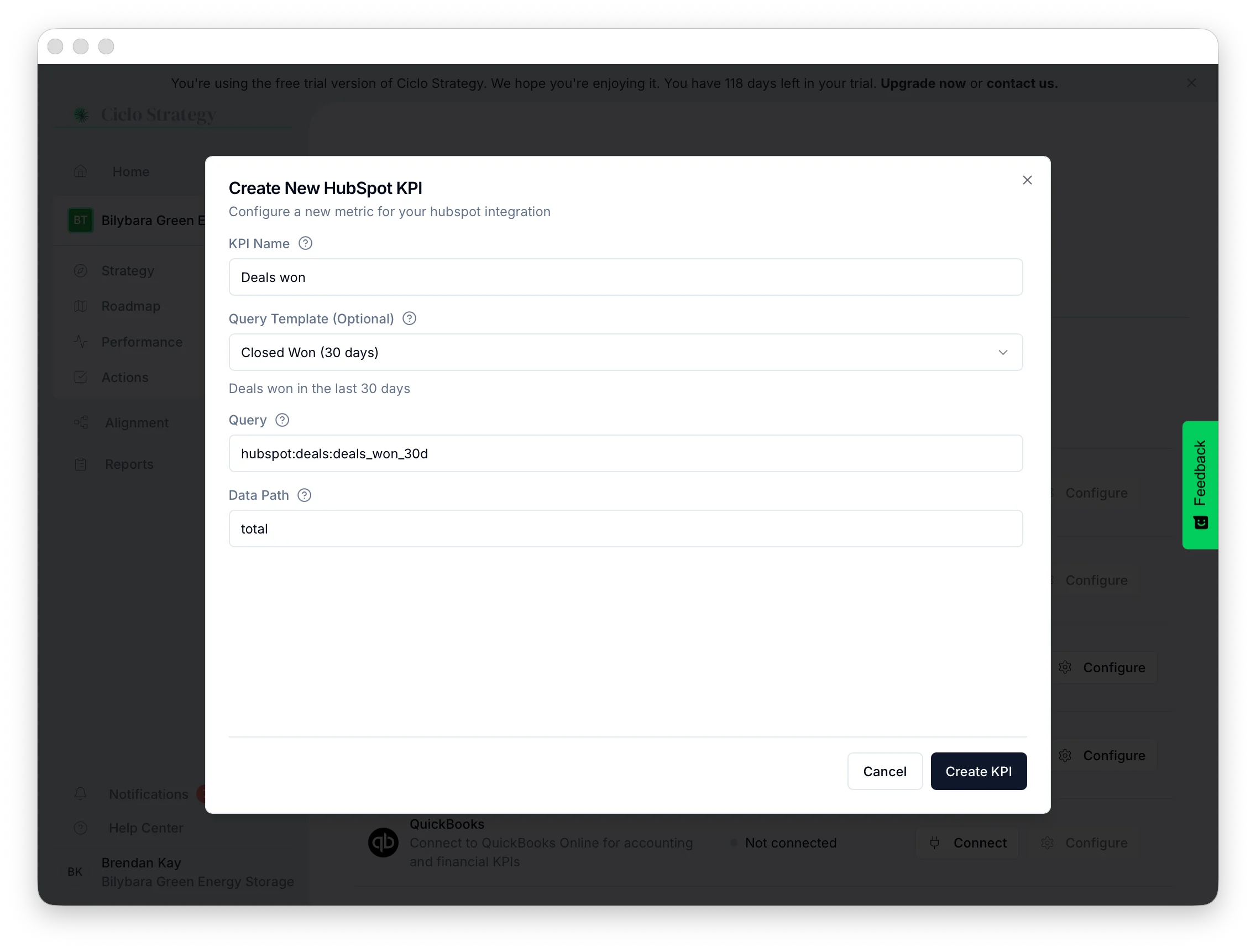
Name it and pick a template
Give the KPI a clear name, then choose a Query Template — see the
catalogue below.
Choose a pipeline (for pipeline KPIs)
Most KPIs work across your whole portal. For pipeline-specific deal KPIs, also select
the Pipeline they apply to.
Create the KPI
Select Create KPI. It appears on your Performance page
and refreshes automatically.
Available HubSpot KPIs
Contacts & companies
Contacts & companies
- Total Contacts / New Contacts (7 / 30 days).
- Total Companies / New Companies (30 days).
Deals (all pipelines)
Deals (all pipelines)
- Total Open Deals — open deals across every pipeline.
- Total Deal Value — summed value of all open deals.
- Closed Won (30 days) — deals won in the last month.
- Closed Won Revenue (30 days) — revenue from deals won in the last month.
Deals (specific pipeline)
Deals (specific pipeline)
Require selecting a pipeline:
- Pipeline Open Deals — open deals in the chosen pipeline.
- Pipeline Deal Value — value of open deals in the pipeline.
- Pipeline Closed Won (30 days) — deals won in the pipeline this month.
Support tickets
Support tickets
- Open Tickets — currently open support tickets.
- New Tickets (7 days) — tickets created in the last week.
HubSpot KPIs are configured from the templates above (plus a pipeline where prompted) rather
than free-form queries — so there’s nothing to hand-edit, and you get accurate results by
simply picking the template you need.
Link HubSpot deals to Actions
Open an action and go to Connect
Create or open an Action, then choose Connect.
Choose the pipeline and deal
Select HubSpot, pick the pipeline, then choose the deal to connect. Ciclo
fills in the deal name, description, line items (as tasks), owner and pipeline (as tags),
and the close date as the due date.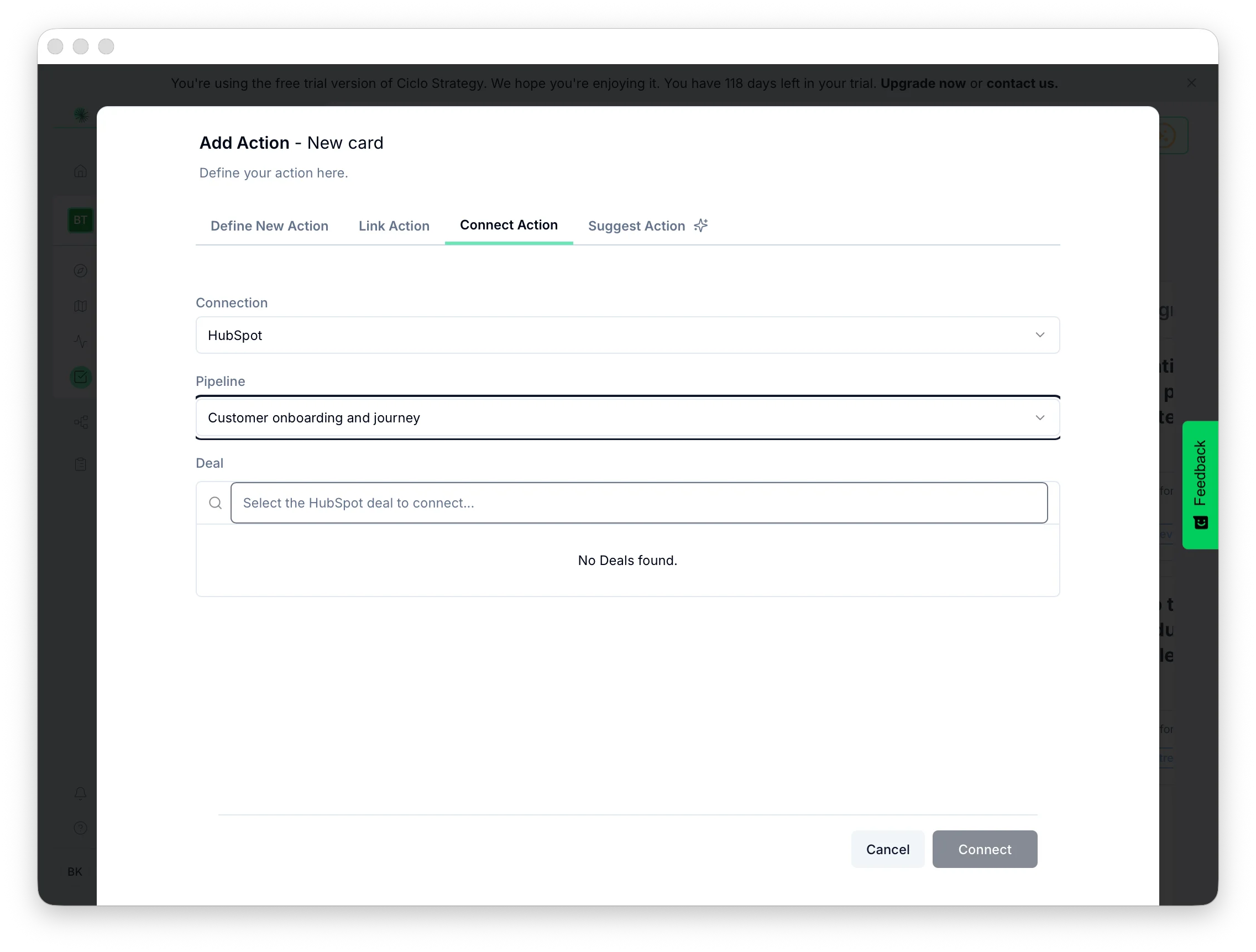
Disconnecting HubSpot
Select Disconnect on the HubSpot row. Ciclo shows which KPIs and Actions rely on HubSpot before you confirm, and revokes the access token with HubSpot.Disconnecting preserves history — KPIs keep their recorded values and linked Actions
keep their data. They stop syncing until you reconnect, then resume automatically.