

Overview
The Settings page is where you configure your account and, if you’re an administrator, your organisation — its teams, members, integrations, and API access.Where to find Settings
1
Open the account menu
Click your name and organisation name in the bottom-left corner of the screen.
2
Choose an option
The dropdown includes Help (this documentation), a theme selector (light, dark,
or match system), a link to the company website, and Settings.
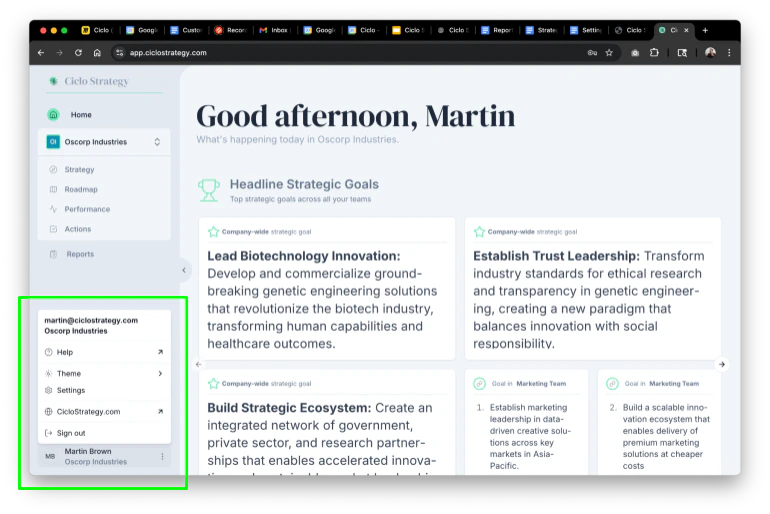
The account menu in the bottom-left corner
The settings tabs
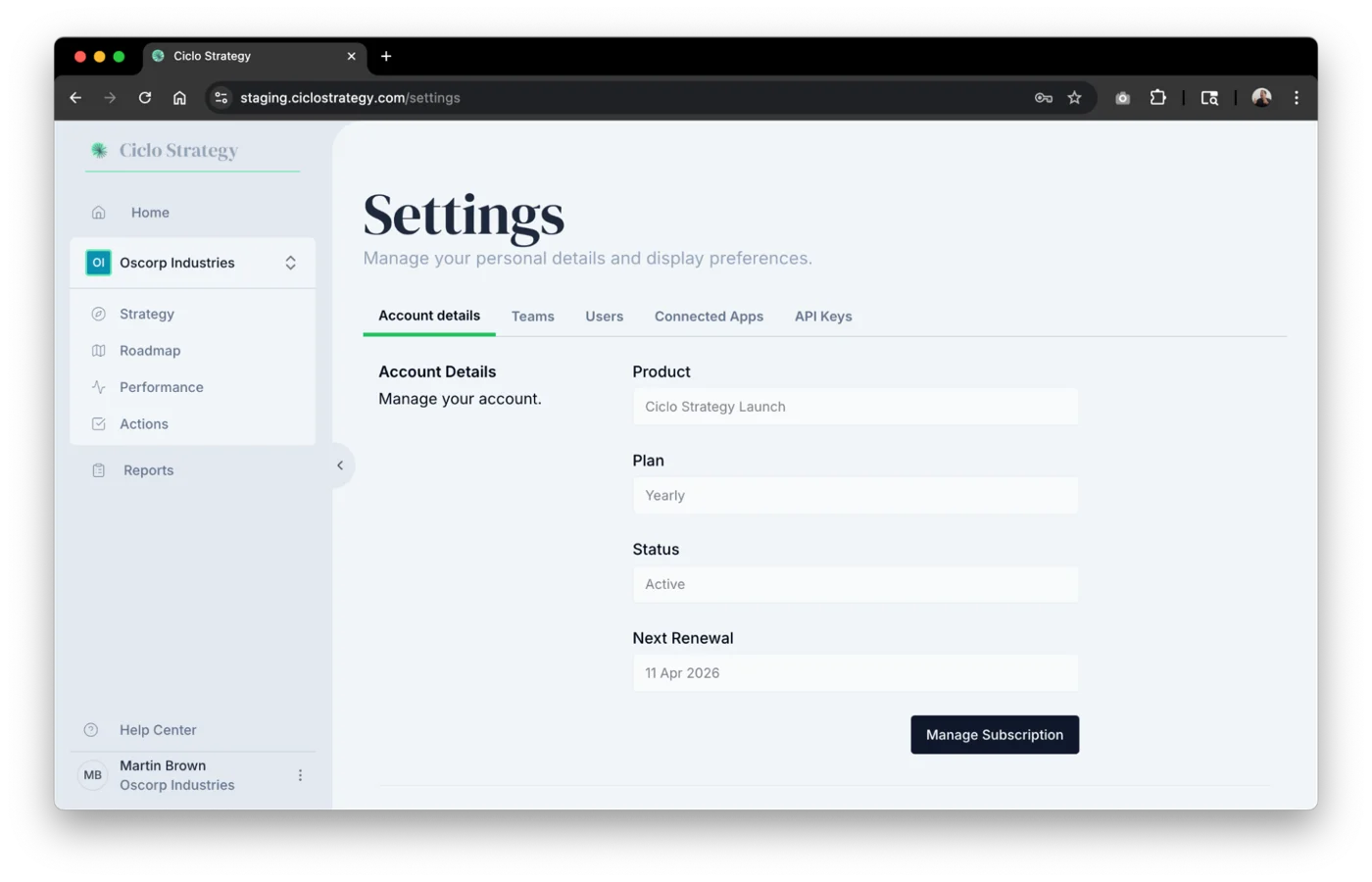
The Settings tabs (admins see all seven)
1. Account Details
1. Account Details
- Plan info — your subscription type (monthly/yearly), status, and next renewal date.
- Manage subscription — opens a secure Stripe billing portal to renew or cancel. On a free trial? See Upgrading from your trial.
- Email & name — update your personal details.
- Password & MFA — change your password and manage multi-factor authentication.
Your organisation name and role are typically locked and managed by your admin.
2. Notifications
2. Notifications
Control which email notifications you receive. A master Enable email notifications
switch turns everything on or off, with individual toggles for action assignments,
initiative assignments, KPI assignments, and team additions.
3. Workspace
3. Workspace
Brand your organisation’s workspace by uploading a small logo (used in compact
spaces like the sidebar) and a large logo.
4. Teams
4. Teams
Define and manage internal teams. Click Add Team and set its name, initials,
and colour (used for visual markers across Ciclo). Assign per-team roles
(Admin, Editor, Member), mark one team as your Executive Team (the
origin point for strategy cascading), and archive teams you no longer need (archived
teams can be restored with one click). See
Teams & permissions.
5. Users
5. Users
See everyone in your organisation — name, email, creation date, and last login — and
change roles if you’re an admin. To add someone, enter their name and email and
click Add User; they receive an invitation and can then be assigned to teams. See
Inviting your team.
6. Connected Apps
6. Connected Apps
Manage integrations with external platforms to pull in and push out data. See
Integrations for app-specific guides.
7. API Keys
7. API Keys
Generate API keys to export data from Ciclo into external systems — useful for
automating reporting, analytics, or BI integrations.
Best practices
- Enable MFA for every account.
- Delegate admins — let department heads manage their own teams and reports.
- Keep roles tight — only grant Editor or Admin access where it’s needed.
- Set an Executive Team to enable structured strategy cascading and better AI analysis.
- Audit users regularly — remove unused accounts and stale team memberships.